VPN Microsoft Edge: How to Turn It On and Choose the Right Option
Learn how Edge Secure Network and VPN extensions work, how to enable them, and which option fits your browsing needs.
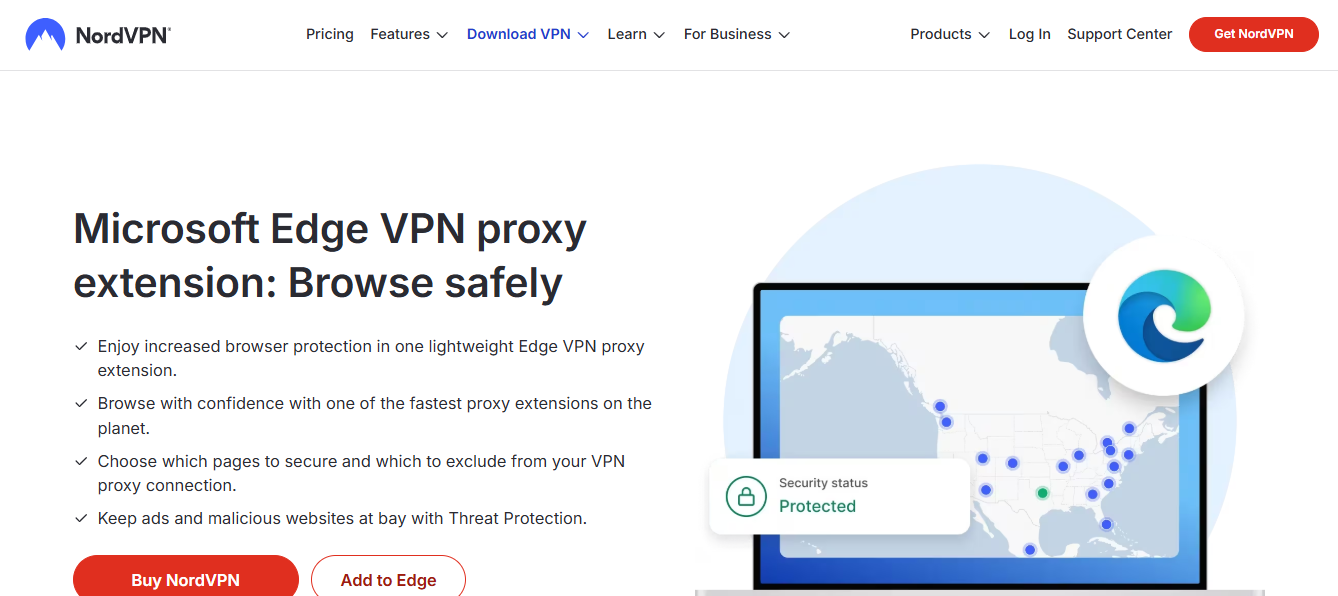
If you’re looking for a VPN for Microsoft Edge, start by checking whether Edge Secure Network is available in your browser. It is a built-in privacy feature that uses VPN technology to help protect your connection while browsing. If you need different locations, broader device coverage, or more control, consider a VPN extension from Microsoft Edge Add-ons or a standalone VPN service. The best choice depends on what you need protected and how the service handles your data.
Editor's pick: NordVPN — fast, secure VPN — Strong encryption, a no-logs policy and apps for every device. 30-day money-back guarantee. Get NordVPN →
Compare Edge Secure Network with a VPN extension
| Feature | Edge Secure Network | VPN extension |
|---|---|---|
| Where it works | Microsoft Edge | Browser traffic |
| Setup | Built into Edge | Install from extension store |
| Account required | Microsoft account | Depends on provider |
| Data handling | Limited monthly allowance | Depends on provider |
| Server choice | Limited | Often offers choices |
| Protection scope | Edge traffic | Usually browser traffic |
| Best for | Occasional browsing protection | More control in the browser |
Compiled November 2026; check the provider's site for current details.
| VPN | Obfuscation | From / month | Plan | Free plan | Refund | Alipay | UnionPay | Crypto | Website opens in China | Trustpilot | |
|---|---|---|---|---|---|---|---|---|---|---|---|
 ZoogVPN | Turn on manually Shadow | $2.49/mo | 27 months: $59.99 | Yes | 7 days | ✓ | ✓ | ✓ | ✓ | Official site blocked; our special link opens (4.4 s) | 4.2/5 (195 reviews) |
 NordVPN | Turn on manually Obfuscated Servers / NordWhisper | $3.49/mo | 27 months: $94.23 | No | 30 days | ? | ✗ | ✓ | ✓ | ✗ Blocked | 4.2/5 (51,628 reviews) |
 ExpressVPN | ✓ On by default all servers | $3.00/mo | 28 months: $84 | No | 30 days | ✗ | ✗ | ✓ | ✗ | ✗ Blocked | 4.4/5 (29,706 reviews) |
 Surfshark | ✓ On by default Camouflage, with OpenVPN | See site | See site | No | 30 days | ✗ | ✗ | ✗ | ✓ | ✗ Blocked | 4.3/5 (31,823 reviews) |
 Proton VPN | Turn on manually Stealth, free plan too | $2.99/mo | 12 months: $35.88 | Yes | 30 days | ✗ | ✗ | ✗ | ✓ | ✗ Blocked | 2.1/5 (1,040 reviews) |
 Astrill VPN | Turn on manually StealthVPN / OpenWeb | $12.50/mo | 24 months: $300 | No | See site | ✗ | ✗ | ✗ | ✓ | ✗ Blocked | 1.3/5 (110 reviews) |
 Private Internet Access | Turn on manually Shadowsocks, OpenVPN only | $2.03/mo | 40 months: $81.2 | No | 30 days | ✗ | ✗ | ✗ | ✗ | ✗ Blocked | 4.2/5 (11,033 reviews) |
 CyberGhost | Turn on manually selected servers | $2.19/mo | 28 months: $61.32 | No | 45 days | ✗ | ✗ | ✗ | ✓ | ✗ Blocked | 4.0/5 (24,178 reviews) |
 PureVPN | Turn on manually switch to OpenVPN | $1.69/mo | 60 months: $101.55 | No | 31 days | ? | ? | ✗ | ✓ | ✗ Blocked | 4.4/5 (17,994 reviews) |
 AdGuard VPN | ✓ On by default TrustTunnel | $2.99/mo | 24 months: $71.76 | Yes | 30 days | ✓ | ✗ | ✓ | ✓ | Official site blocked; our special link opens (3.7 s) | 4.3/5 (290 reviews) |
 Mullvad | Turn on manually QUIC / Shadowsocks / LWO | $5.61/mo | €5/mo | No | 14 days | ✗ | ✗ | ✗ | ✓ | ✗ Blocked | 3.2/5 (192 reviews) |
 Windscribe | Turn on manually Stealth / WStunnel | $5.75/mo | 12 months: $69 | Yes | See site | ✗ | ✗ | ✗ | ✓ | ✗ Blocked | 4.7/5 (13,355 reviews) |
 StrongVPN | Turn on manually Scramble, OpenVPN TCP | See site | See site | No | 30 days | ✓ | ✗ | ✗ | ✗ | ✗ Blocked | 4.4/5 (2,695 reviews) |
 LightXtreme 闪连 | Not listed | $7.08/mo | 12 months: $84.99 | Yes | 30 days | ✓ | ✓ | ✓ | ✓ | ✓ Yes (3.5 s) | No page |
Prices checked 2026-11-10 on each vendor's pricing page (cheapest long plan, USD). Check the vendor's checkout for the final price.
Obfuscation checked 2026-11-14 on each vendor's site and help center: "on by default" = nothing to set; "turn on manually" = switch protocol or mode in settings; "not listed" = the vendor describes no obfuscation.
Payment methods checked 2026-11-10 on each vendor's payment pages: all 14 take cards and PayPal; ✗ = not listed, ? = the vendor's own pages disagree.
China access: whether the official website opens from mainland China networks (tests the website only, not the VPN connection). Last checked 2026-11-18 01:02 Beijing time.
Trustpilot score and review count checked 2026-11-10.
What is a VPN for Microsoft Edge?
A VPN, or virtual private network, routes internet traffic through a VPN service. This can help protect data on untrusted networks and make your browsing connection appear to come from a VPN server rather than directly from your device.
There are two common ways to use VPN technology with Edge:
- Built-in browser protection: Edge Secure Network is integrated into Microsoft Edge and is designed to help protect your connection while browsing.
- VPN extension: An add-on runs inside Edge and may route or protect traffic from the browser, depending on how that particular extension works.
- Standalone VPN app: An app installed on your computer can protect traffic from more than just Edge, depending on its settings.
These options are not automatically interchangeable. An extension may not cover other apps on your device, while a browser feature is intended for browsing within Edge. Check the provider’s documentation to understand exactly what is included.
How to turn on Edge Secure Network
Edge Secure Network is the simplest place to start because it is built into the browser. Availability and settings may vary, so first make sure Edge is up to date and look for the feature in the browser’s settings. Urban VPN Proxy: What It Does, How to Use It, and What to Consider
Steps to check
- Open Microsoft Edge.
- Open the browser menu and select Settings.
- Look for Privacy, search, and services or a Secure Network setting.
- If Secure Network is available, follow the on-screen instructions to turn it on.
- Review any account, data, or usage details shown before browsing.
You can also check Microsoft’s Edge Secure Network information for current availability and instructions. If the feature does not appear, it may not be available for your browser, account, region, or configuration. Do not assume that an absent setting means your connection is already protected.
Choose the right option for your needs
| Your need | Edge Secure Network | VPN extension |
|---|---|---|
| Quick setup | Strong fit | Requires installation |
| Occasional public Wi-Fi use | Suitable | Suitable |
| Protect traffic outside Edge | No | Usually no |
| Choose a server location | Limited choice | Often supported |
| Use advanced VPN features | Limited | Depends on provider |
| Avoid another extension | Strong fit | No |
| Check provider-specific terms | Microsoft terms apply | Essential |
Compiled November 2026; check the provider's site for current details.
Edge Secure Network vs. a VPN extension
VPN extensions can be convenient, especially if you want to manage protection from the Edge toolbar. The Microsoft Edge Add-ons store lists VPN options, including services such as VeePN and ZenMate. However, the label “VPN” does not tell you everything about how an add-on works or what it protects. Urban VPN Extension for Edge: How to Install and Use It
| Option | Where it works | What to check |
|---|---|---|
| Edge Secure Network | Microsoft Edge browsing | Availability, usage conditions, and the feature’s current limits |
| VPN extension | Usually traffic handled by the browser extension | Whether it covers all browser traffic, server locations, privacy practices, and permissions |
| Standalone VPN app | Potentially traffic from multiple apps on the device | Device support, connection settings, privacy terms, and coverage |
Treat claims such as “free,” “unlimited,” or “no logs” as claims to verify, not as a substitute for reading the service’s terms. An extension may request permissions that let it interact with browser data. Install add-ons only from a trusted source, check the publisher, and review the permissions before proceeding.
Is the built-in Edge VPN good?
Edge Secure Network can be a convenient option if you want browser-based privacy without installing an add-on. Microsoft describes it as a built-in feature that uses VPN technology to help protect your connection while browsing.
Whether it is sufficient depends on your needs. Consider these questions:
- Do you need protection only while using Edge? A browser feature or extension may suit that use.
- Do you want to protect other apps? Look into a standalone VPN app and confirm its coverage.
- Do you need a particular server location? Check whether the option you choose offers the locations you need.
- Are there usage limits? Review the current terms in Edge or with the provider. Limits and availability can change.
- Are you relying on it for sensitive tasks? Read the privacy policy and understand what data the provider collects or retains.
A VPN can improve privacy in some situations, but it does not make you anonymous or protect against every online threat. Websites may still identify you through sign-ins, cookies, browser fingerprinting, or other methods. Continue using secure connections and good account security. IPsec VPN: How It Works, Benefits, and When to Use It
Check a VPN extension before installing
| What to check | Why it matters | Good sign |
|---|---|---|
| Provider reputation | Helps assess trustworthiness | Established provider |
| Privacy policy | Explains data collection | Clear, specific terms |
| Encryption | Protects traffic in transit | Encryption details provided |
| Logging policy | Indicates what activity is retained | Clearly explained limits |
| Server locations | Determines available connection regions | Locations listed |
| Performance | Affects browsing speed | Trial or independent reviews |
| Pricing and limits | Reveals costs and restrictions | Terms shown upfront |
| Extension permissions | Shows what the add-on can access | Permissions match its purpose |
Compiled November 2026; check the provider's site for current details.
How to choose a VPN extension for Edge
Before adding a VPN extension, compare more than its rating or headline claims. Search the Microsoft Edge Add-ons store, open the extension’s listing, and review its features and publisher information.
Look for clear answers to these points: Tuxler VPN Extension: What It Does, How to Install It, and What to Know
- Traffic coverage: Does it protect all Edge traffic, or only selected browsing activity?
- Privacy policy: What information is collected, and how is it used?
- Permissions: Are the requested browser permissions reasonable for the stated features?
- Server choices: Does the service provide locations that match your needs?
- Reliability and support: Is there clear documentation for setup and troubleshooting?
- Pricing and limits: Confirm current terms directly with the provider rather than relying on an old listing or third-party post.
Be cautious about installing several VPN extensions at once. They may conflict, and multiple tools can make it harder to tell which service is handling your connection.
Recommendation
For a quick first step, check whether Edge Secure Network is available in Microsoft Edge and review its current conditions. Choose a VPN extension if you specifically want an Edge add-on, but verify its permissions, privacy practices, and coverage before installing it. If you need protection beyond browser activity, compare standalone VPN apps and confirm that they cover the traffic you want protected.