Free VPN for Edge Extension: How to Choose One Safely
Find a free VPN extension for Microsoft Edge, compare popular options, and learn what to check before installing.
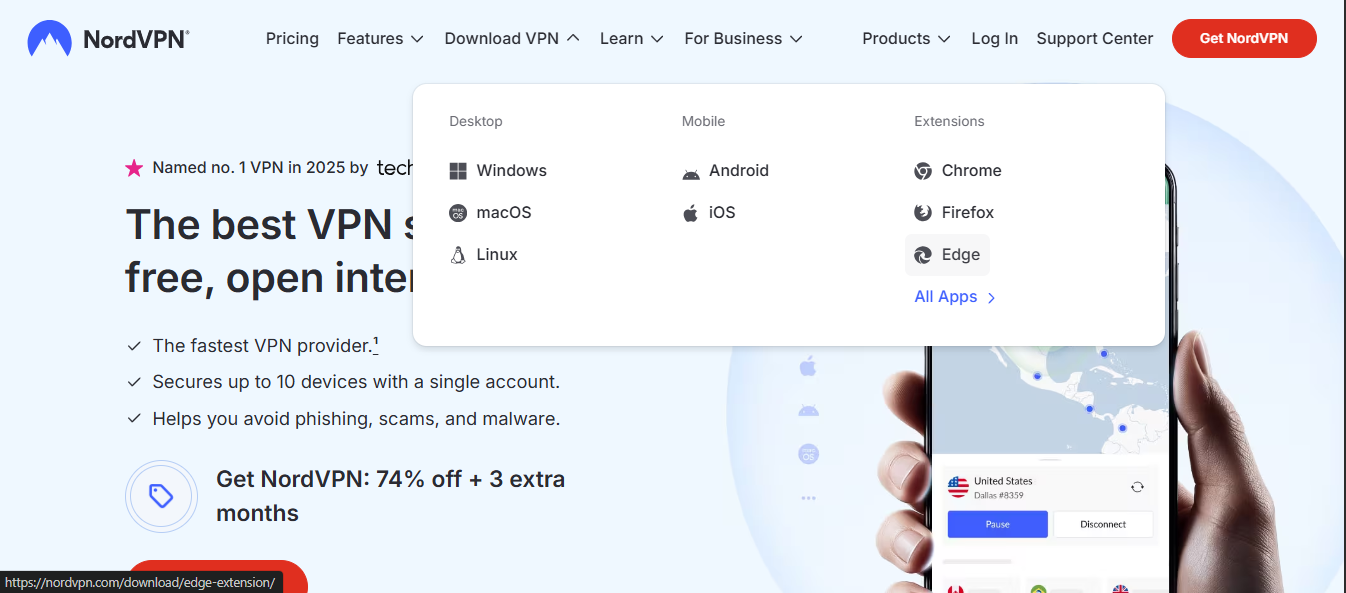
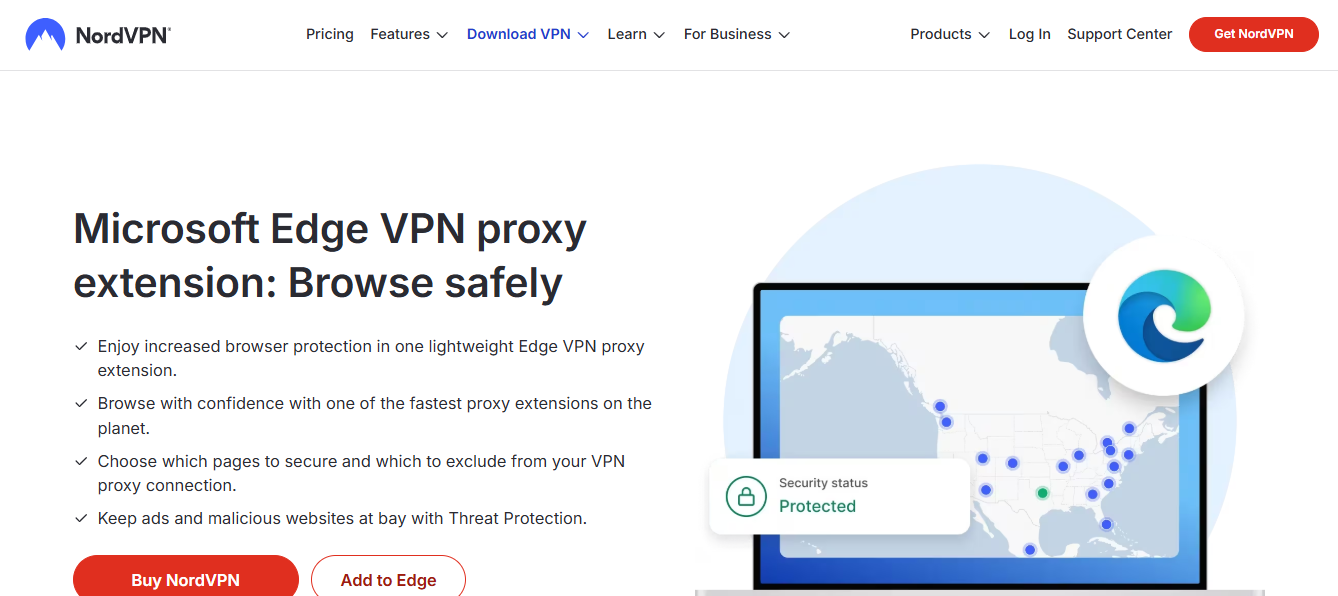
A free VPN for Edge extension can help protect browsing traffic, change the IP address websites see, or access some blocked sites. Options in the Microsoft Edge Add-ons store include VeePN, Browsec VPN, ZenMate Free VPN, and Planet VPN. However, “free” does not guarantee unlimited access, strong privacy, or protection for your entire device. Check what each extension actually offers before you install it.
Editor's pick: NordVPN — fast, secure VPN — Strong encryption, a no-logs policy and apps for every device. 30-day money-back guarantee. Get NordVPN →
What a VPN extension does in Edge
| Feature | VPN extension | Full VPN app | What to check |
|---|---|---|---|
| Traffic covered | Usually browser traffic | Often device traffic | Scope |
| Edge integration | Runs in the browser | Runs separately | Extension permissions |
| Wi-Fi protection | Browser traffic only | Broader device coverage | Other apps |
| IP address | Changes browser IP | Changes device IP | Location options |
| Encryption | Depends on provider | Depends on provider | Security details |
| Privacy policy | Provider-dependent | Provider-dependent | Logging practices |
Compiled November 2026; check the provider's site for current details.
| VPN | Obfuscation | From / month | Plan | Free plan | Refund | Alipay | UnionPay | Crypto | Website opens in China | Trustpilot | |
|---|---|---|---|---|---|---|---|---|---|---|---|
 ZoogVPN | Turn on manually Shadow | $2.49/mo | 27 months: $59.99 | Yes | 7 days | ✓ | ✓ | ✓ | ✓ | Official site blocked; our special link opens (4.4 s) | 4.2/5 (195 reviews) |
 NordVPN | Turn on manually Obfuscated Servers / NordWhisper | $3.49/mo | 27 months: $94.23 | No | 30 days | ? | ✗ | ✓ | ✓ | ✗ Blocked | 4.2/5 (51,628 reviews) |
 ExpressVPN | ✓ On by default all servers | $3.00/mo | 28 months: $84 | No | 30 days | ✗ | ✗ | ✓ | ✗ | ✗ Blocked | 4.4/5 (29,706 reviews) |
 Surfshark | ✓ On by default Camouflage, with OpenVPN | See site | See site | No | 30 days | ✗ | ✗ | ✗ | ✓ | ✗ Blocked | 4.3/5 (31,823 reviews) |
 Proton VPN | Turn on manually Stealth, free plan too | $2.99/mo | 12 months: $35.88 | Yes | 30 days | ✗ | ✗ | ✗ | ✓ | ✗ Blocked | 2.1/5 (1,040 reviews) |
 Astrill VPN | Turn on manually StealthVPN / OpenWeb | $12.50/mo | 24 months: $300 | No | See site | ✗ | ✗ | ✗ | ✓ | ✗ Blocked | 1.3/5 (110 reviews) |
 Private Internet Access | Turn on manually Shadowsocks, OpenVPN only | $2.03/mo | 40 months: $81.2 | No | 30 days | ✗ | ✗ | ✗ | ✗ | ✗ Blocked | 4.2/5 (11,033 reviews) |
 CyberGhost | Turn on manually selected servers | $2.19/mo | 28 months: $61.32 | No | 45 days | ✗ | ✗ | ✗ | ✓ | ✗ Blocked | 4.0/5 (24,178 reviews) |
 PureVPN | Turn on manually switch to OpenVPN | $1.69/mo | 60 months: $101.55 | No | 31 days | ? | ? | ✗ | ✓ | ✗ Blocked | 4.4/5 (17,994 reviews) |
 AdGuard VPN | ✓ On by default TrustTunnel | $2.99/mo | 24 months: $71.76 | Yes | 30 days | ✓ | ✗ | ✓ | ✓ | Official site blocked; our special link opens (3.7 s) | 4.3/5 (290 reviews) |
 Mullvad | Turn on manually QUIC / Shadowsocks / LWO | $5.61/mo | €5/mo | No | 14 days | ✗ | ✗ | ✗ | ✓ | ✗ Blocked | 3.2/5 (192 reviews) |
 Windscribe | Turn on manually Stealth / WStunnel | $5.75/mo | 12 months: $69 | Yes | See site | ✗ | ✗ | ✗ | ✓ | ✗ Blocked | 4.7/5 (13,355 reviews) |
 StrongVPN | Turn on manually Scramble, OpenVPN TCP | See site | See site | No | 30 days | ✓ | ✗ | ✗ | ✗ | ✗ Blocked | 4.4/5 (2,695 reviews) |
 LightXtreme 闪连 | Not listed | $7.08/mo | 12 months: $84.99 | Yes | 30 days | ✓ | ✓ | ✓ | ✓ | ✓ Yes (3.5 s) | No page |
Prices checked 2026-11-10 on each vendor's pricing page (cheapest long plan, USD). Check the vendor's checkout for the final price.
Obfuscation checked 2026-11-14 on each vendor's site and help center: "on by default" = nothing to set; "turn on manually" = switch protocol or mode in settings; "not listed" = the vendor describes no obfuscation.
Payment methods checked 2026-11-10 on each vendor's payment pages: all 14 take cards and PayPal; ✗ = not listed, ? = the vendor's own pages disagree.
China access: whether the official website opens from mainland China networks (tests the website only, not the VPN connection). Last checked 2026-11-18 01:02 Beijing time.
Trustpilot score and review count checked 2026-11-10.
What a VPN extension does in Edge
A VPN extension adds a control to your browser. Depending on how it works, it may route browser traffic through a VPN server and replace your visible IP address with the server’s IP. This can make it harder for websites to identify your approximate location or connect your activity to your home IP.
A browser extension is not always the same as a full VPN app. An extension may cover only traffic handled by Edge, while a device-wide VPN app can protect traffic from other apps as well. Read the product description and privacy policy to understand the scope of protection.
A VPN also does not make you completely anonymous. Websites may still identify you through account logins, cookies, browser fingerprinting, or other information.
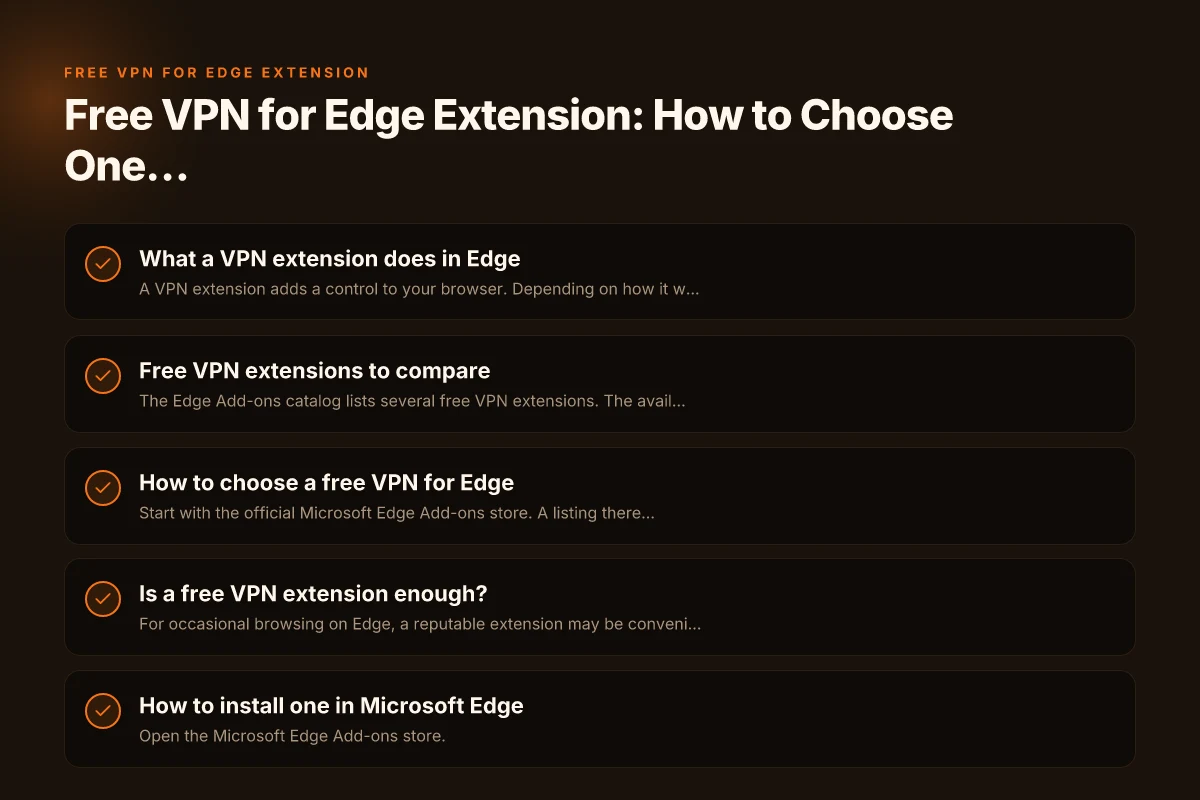
Free VPN extensions to compare
The Edge Add-ons catalog lists several free VPN extensions. The available features and terms can change, so check the current listing before choosing. Free VPN Edge Extension: What to Choose and How to Use It
| Extension | What its listing says | What to verify |
|---|---|---|
| VeePN | Promotes a free VPN extension for accessing blocked websites and browsing securely | Whether the free plan has server, speed, or usage limits |
| Browsec VPN | Describes itself as a free Edge extension that protects your IP and supports private browsing | The privacy policy, free-plan limits, and available locations |
| ZenMate Free VPN | Appears among VPN options in Edge Add-ons search results | Current availability and the features included at no cost |
| Planet VPN | Describes its extension as lightweight and unlimited, and mentions an ad blocker | What “unlimited” covers and whether the ad blocker is optional |
These descriptions are claims made in product listings, not independent guarantees. Look for clear information about logging, data handling, and limitations before relying on any service.
How to choose and install a free VPN for Edge
| Decision step | What to look for | Safer choice |
|---|---|---|
| Find the extension | Edge Add-ons listing | Official listing |
| Check the publisher | Clear provider identity | Recognized provider |
| Review permissions | Access suited to VPN features | Avoid unrelated access |
| Check privacy terms | Clear data and logging policy | Minimal data collection |
| Confirm free-plan limits | Data, speed, and server limits | Limits that fit your use |
| Install | Select Get, then confirm | Verify the publisher first |
| Test the connection | Check browser IP and access | Disconnect if results seem wrong |
Compiled November 2026; check the provider's site for current details.
How to choose a free VPN for Edge
Start with the official Microsoft Edge Add-ons store. A listing there makes installation more straightforward, but it does not replace your own checks. Review the developer name, recent user feedback, update history, and requested permissions. VPN Extension Edge Free: How to Choose a Free VPN for Microsoft Edge
Before installing, ask:
- What does the free plan include? Check for limits on locations, speed, data, or simultaneous use.
- What data is collected? Read the privacy policy for details about connection logs, browsing information, and account data.
- How does it make money? Be cautious if the provider does not explain its business model or data practices.
- What permissions does it request? The extension should request permissions that make sense for its stated functions.
- Can you disconnect easily? Look for a clear on/off control and support information.
- Does it suit your activity? Streaming, gaming, and large downloads may require more speed or capacity than a free plan provides.
Avoid choosing based only on a “no logs,” “unlimited,” or “secure” label. Those phrases need to be supported by transparent policies and meaningful details.
Is a free VPN extension enough?
For occasional browsing on Edge, a reputable extension may be convenient. It can help mask your IP from websites while its connection is active, depending on how the service routes traffic. It may also be useful when you want a simple browser-level tool rather than a full VPN installation.
But free extensions may come with trade-offs, such as fewer server locations, slower speeds, limited features, or promotional prompts. More importantly, an extension should not be assumed to protect all internet activity on your computer. If you need coverage for applications outside Edge, check whether the provider offers a full VPN app and whether its free plan covers that use. Nord VPN for PC: How to Download, Install, and Use It
A VPN is also not a substitute for secure browsing habits. Use HTTPS websites, keep Edge updated, and be careful with downloads and links. A VPN cannot make a malicious site or file safe.
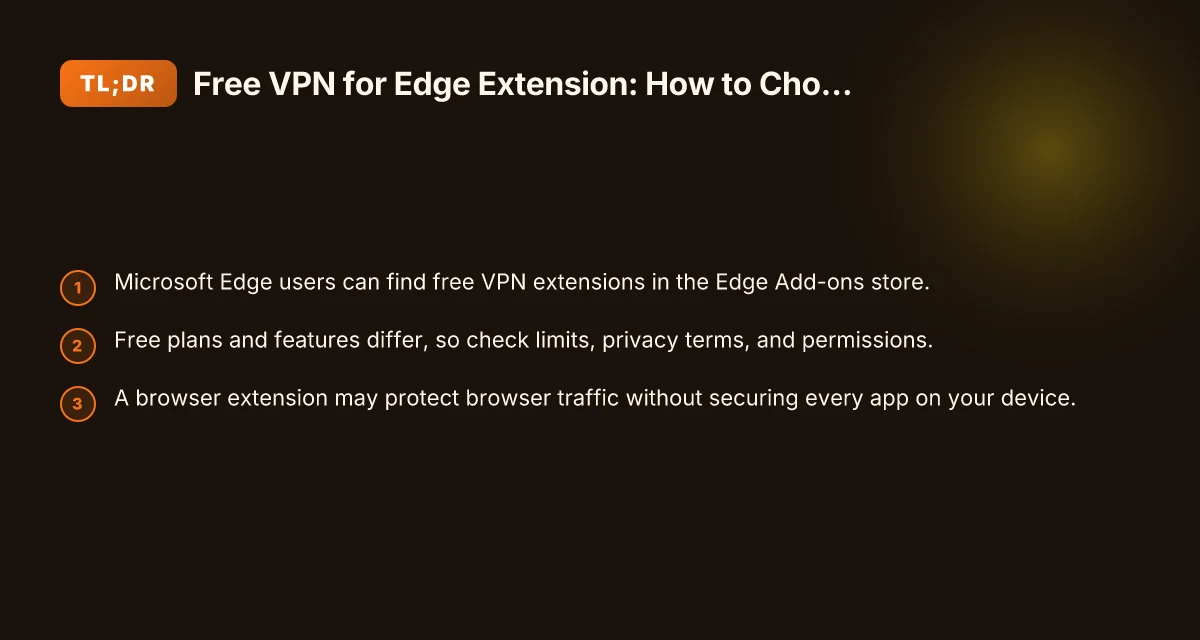
How to install one in Microsoft Edge
- Open the Microsoft Edge Add-ons store.
- Search for the extension by its exact name, such as VeePN, Browsec VPN, or Planet VPN.
- Open the listing and review its publisher, permissions, privacy information, and current user feedback.
- Select the option to add the extension to Edge, then confirm the requested permissions.
- Open the extension, review its settings, and connect only when you want to use it.
If an extension behaves unexpectedly, disconnect it, review its permissions, and remove it if you no longer trust it. Avoid installing similarly named tools from unfamiliar download sites.
Recommendation
For a free VPN for Edge extension, begin with the official Edge Add-ons store and compare VeePN, Browsec VPN, ZenMate Free VPN, and Planet VPN against your needs. Choose the option with the clearest privacy policy and suitable free-plan terms, not simply the boldest claims. If you need protection beyond browser traffic, look for a full-device VPN instead of relying on an Edge extension alone.